
Most teams start managing work through WhatsApp groups, spreadsheets and phone calls. That works until the team grows and managers spend more of the day chasing updates than running the business. A task manager application can fix part of that problem, but only if the tool matches how your work really moves across people, shifts and locations.
This guide covers what to look for, when a simple or free app is enough, and when a growing business needs a more connected system.
Key takeaways
- A simple task app is enough for a small team with few repeating jobs. Growing teams usually need workflows, reminders, attendance and reporting in one place.
- The hidden cost of scattered tools is coordination: chasing status, searching for information and switching between apps.
- Check for recurring tasks, proof of work, automated reminders and reports before you think about AI.
- AI helps most when it runs on clean task data and rules your managers set. People still make the important decisions.
- Start with two or three workflows, review them after a month, then expand.
At a glance
- Best for: owners and managers who coordinate work across roles, shifts or sites
- A simple tool is enough when: you run a small team in one location with few recurring jobs
- Signs you have outgrown it: managers chasing updates, missed follow-ups, hand-built daily reports, field staff you cannot see
- Must-have features: assignment, due dates, recurring tasks, reminders, proof of work, dashboards
- Typical cost model: free plans for very small teams, paid plans usually charged per user per month
- First step: write down your three most repeated workflows before comparing apps
What does a task management app actually do for a team?
A task management app gives every piece of work an owner, a due date and a status in one shared place. Instead of asking five people for updates, a manager opens one view. For teams, the useful parts go beyond a to-do list: assignment, reminders, recurring jobs, attachments, comments and reports on what was done.
Personal to-do apps are built for one person planning their own day. Team tools add a second layer: who assigned the work, who owns it, when it is due and whether it was finished on time. Managers need that layer once a business grows past the point where everyone sits in the same room.
The data matters as much as the list. Every finished task leaves a record of time, owner, location, photos and comments. In a WhatsApp group, that record scrolls away. In a shared system, the record becomes a history you can search, measure and report on.
Why do WhatsApp groups and spreadsheets stop working as teams grow?
WhatsApp, Excel and phone calls work well when a handful of people share one office. As headcount, locations and shifts grow, updates scatter across chats and files. Managers lose a single view of what is done, what is late and who owns each job. Much of their day then goes into chasing status.
The change usually happens in stages:
- Small: the owner assigns work in one WhatsApp group and tracks it in Excel. Everyone knows everything.
- Growing: more people and a second or third site. Each team gets its own group and sheet, supervisors relay updates, and follow-ups start to slip.
- Complex: hundreds of employees and multiple shifts. Work needs approvals, shift handovers and daily reports, and someone compiles those reports by hand every evening.
- Scaled: tasks, attendance and reports share connected data. Recurring work and reminders run automatically, and managers review exceptions instead of chasing everyone.
Research on office teams shows how heavy this coordination load can get. Asana’s Anatomy of Work Global Index surveyed 9,615 knowledge workers in the US, UK, Australia, France, Germany and Japan. The study found they used 8.8 apps on average (Asana, 2023).
Knowledge workers spend 58% of their day on "work about work", such as coordinating and chasing status, according to Asana’s Anatomy of Work Global Index (Asana, 2023).
Interruptions add to the load. Microsoft’s Work Trend Index special report found that the most heavily messaged 20% of Microsoft 365 users are interrupted about every two minutes during core hours by meetings, emails or chats (Microsoft, 2025).
Both studies cover office-based knowledge workers, not technicians or shop-floor staff. The same pattern likely applies to operations teams: when work lives in many channels, people spend time coordinating instead of doing. With field teams the effect can be stronger, because a supervisor cannot simply walk over and check.

When is a free task manager app enough?
A free task manager app is enough when you have a small team in one location, few recurring jobs and no need for attendance or field visibility. If everyone can see the same list and the owner reviews it daily, a lightweight tool works. Paying for more features before you need them only adds setup work.
A free plan usually fits if most of these are true:
- Five or fewer people share the work.
- Most tasks are one-off rather than daily, weekly or monthly checks.
- Nobody works off-site, so you do not need to confirm visits or locations.
- Reports are informal, and nobody compiles them by hand each evening.
Once several of those stop being true, the free tool is no longer the cheap option. The cost moves into manager time, missed follow-ups and reports built from screenshots. That is the point to compare paid plans against the hours your supervisors already spend chasing updates.
Which workflows should a growing business move into a task tool first?
Start with the workflows that repeat most, involve the most handovers or cause the most chasing. These usually include daily checklists, field visits, sales follow-ups, attendance and shift handovers. Moving three of them first gives you clean data and quick feedback without asking the whole company to change at once.
Here are eight workflows most growing businesses run, with the manual work and data each one creates:
- Daily opening and closing checklists: done on paper or by WhatsApp photo. Each produces a time stamp, a photo and a name.
- Field service and site visits: confirmed by phone call. The data includes location, arrival time, work done and customer sign-off.
- Sales follow-ups: kept in a salesperson’s memory or a personal sheet. Missed calls here mean missed revenue.
- Attendance and shift handovers: tracked on manual registers. Late arrivals and open jobs at shift change get lost.
- Preventive maintenance: weekly or monthly checks on equipment, often remembered by one senior technician.
- Inventory requests: a site asks for stock by message, and someone checks a spreadsheet to see what is available.
- Approvals: purchase requests and leave requests that wait in inboxes.
- Daily and weekly reporting: compiled by hand from all of the above.
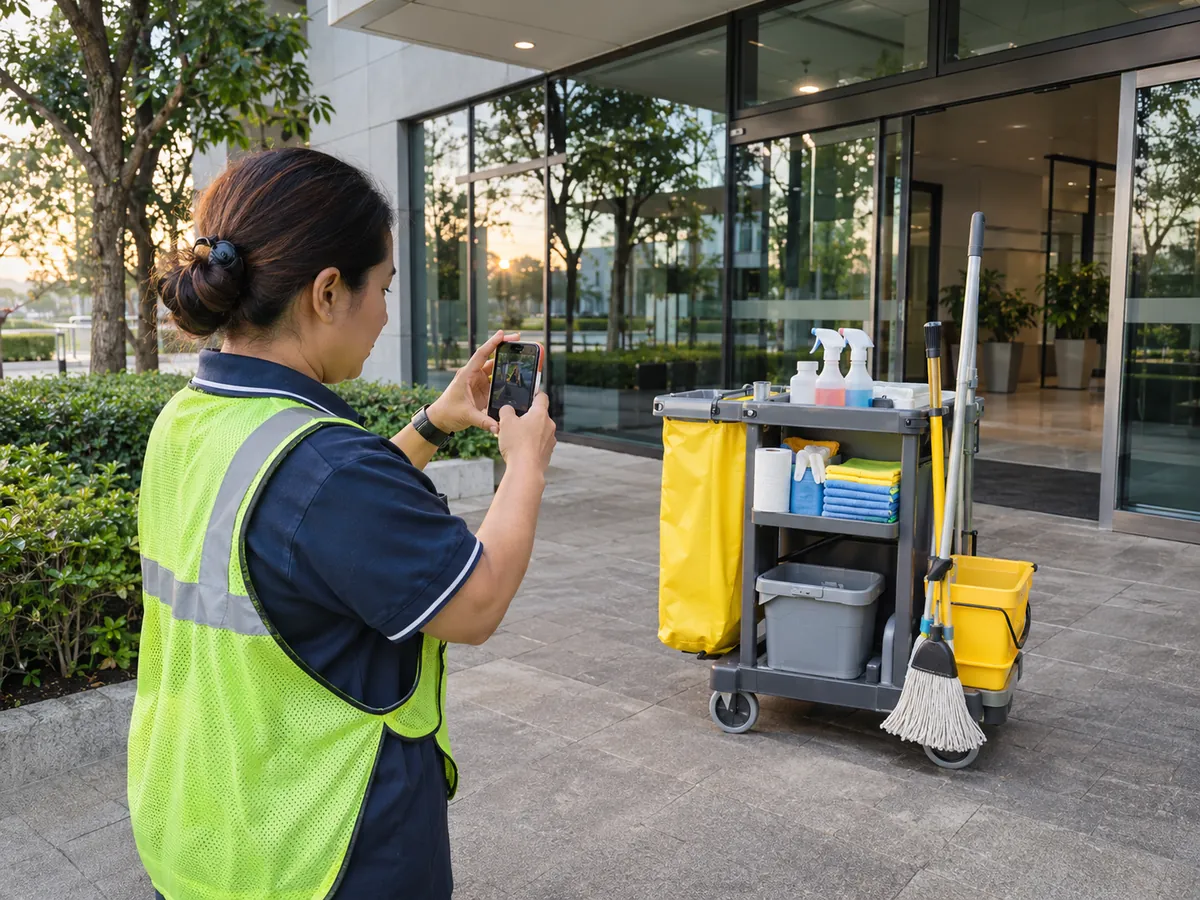
Here is an illustrative example, not a customer case. A facility services firm with 60 staff across four sites runs daily cleaning checklists, monthly equipment checks and client follow-ups. Today, four supervisors send photos to one WhatsApp group, and an admin builds a report every evening.
Moving just the checklists and equipment checks into a shared tool gives the owner one status view. It also removes most of that evening report.
What should a task manager app for small business include?
A task manager app for small business should cover assignment, due dates, recurring tasks, reminders, proof of work and simple reports. If you have field or shift-based staff, add mobile attendance and location. Integrations with calendars and accounting tools matter once data needs to flow between teams instead of being retyped.
Use this decision checklist. The more items apply to you, the more you need a connected system rather than a plain list:
- Multiple locations or field teams: you need location-aware check-ins and photo proof.
- Multiple shifts: you need shift rules and clear handovers.
- Recurring workflows: daily, weekly and monthly tasks should create themselves.
- High follow-up volume: reminders should go out before tasks are due, not after.
- Manual reporting: reports should come from task data automatically.
- Managers chasing updates: you need a dashboard that shows what is late and who owns it.
- Permissions and accountability: staff should see their own work, while managers see their team’s work.
If you run field or shift-based teams, look for team task management software that links tasks to people’s working hours. A task manager with attendance tracking shows not only whether a job was done, but whether the right person was on duty and on site when it happened. That link is what turns task lists into operational visibility.
Where do automation and AI actually help in task management?
Automation helps by handling repeated steps: creating recurring tasks, sending reminders, escalating overdue work and building daily reports. AI adds value on top, using your task history and rules to suggest priorities or flag what needs attention. Both depend on clean, connected data, and people still decide what matters.
Think about the change in each step rather than the technology:
- Before: a manager asks five people for updates. After: one status view shows done, pending and overdue work.
- Before: a salesperson remembers follow-ups. After: the system sends reminders for prospects due today or overdue.
- Before: an admin compiles a report each evening. After: a daily report arrives automatically from task data.
- Before: maintenance depends on one person’s memory. After: recurring tasks appear on schedule with an owner.
AI is only as useful as the data underneath it. If tasks are logged inconsistently, suggestions will be weak. That is why the order matters: standardise the workflow, collect clean data, automate the repeated steps, then let AI assist with prioritisation and insights.
People still set goals, define the rules and make the important calls. AI can help a manager see which jobs need attention first. It should not decide on its own who gets disciplined or which client gets dropped.
How do you roll out a task manager application without disrupting the team?
Roll out a task manager application in small steps. Pick two or three repeated workflows, set them up with clear owners and due dates, train supervisors first, then run both old and new methods for a short overlap. Review results after about a month before adding more teams or features.
A practical step-by-step plan:
- List your workflows. Write down the ten tasks your team repeats most and who owns each one.
- Pick the first three. Choose the ones that cause the most chasing or reporting work.
- Standardise them. Agree on steps, due times and what counts as proof of completion, such as a photo or a check-in.
- Set up recurring tasks and reminders. Let the system create daily and weekly work automatically.
- Train supervisors first. They will answer most staff questions and set the example.
- Run a short overlap. Keep the WhatsApp group for urgent messages, but move task updates into the tool.
- Review after a month. Check overdue rates, report time and adoption, then add the next workflows.
Do not try to move everything at once. Teams resist tools that feel like extra admin. They accept tools that remove a daily headache, such as the evening report or the morning call round.
Where does TrackerSuite fit?
TrackerSuite suits growing businesses that need tasks, attendance, field visibility and reporting connected in one AI-powered operations platform. Its free Starter plan covers very small teams, while paid plans add recurring tasks, reminders, geolocation, WhatsApp reports and AI assistance through its assistant, Tavi. Very small teams with simple lists may not need the paid tiers.
According to TrackerSuite’s pricing page, here is what each plan includes at the time of writing. Check the page for current details before you decide.
At a glance
- Free plan: free for up to 5 users, with essential features for basic task management and simple, lightweight productivity tools
- Growth plan: USD 6.81 per user per month, suited to 5 to 10 users, adding the AI assistant Tavi, WhatsApp notifications and reminders, performance scores and reports, multi-level integration and geolocation tracking
- Scale plan: USD 10.89 per user per month with a 3-day free trial, suited to organisations that need to run processes at scale across every team
- Paid plan features listed: recurring tasks, attendance rules with check-in and check-out, email reminders 48 and 24 hours before a task is due, daily automated WhatsApp reports and two-way Tally integration
- Add-ons listed (Growth plan required): multiple shifts at USD 1.36 per user per month and workflows (breaking big tasks into smaller steps) at USD 4.08 per user per month, both unlocked by upgrading to the Growth plan
How does this map to the workflows above? Daily checklists and preventive maintenance fit recurring tasks. Field visits fit tasks with geolocation. Shift handovers fit attendance rules and shift management, and evening reports become automated daily reports.
Sales follow-ups connect to TrackerSuite’s sales tools, which list reminders for due-today and overdue prospects. If your sites also request stock, Stack Tracker keeps inventory and orders visible across locations, so task and inventory data sit side by side.
What this means for you
If your managers spend their day chasing updates, the problem is rarely effort. Usually the work lives in too many places. Fix that first, and the tool choice becomes easier.
- If you have five or fewer people in one place: a free plan or simple list is probably enough. Revisit the decision when you add a site or a shift.
- If you have field staff or shifts: prioritise mobile attendance, location check-ins and recurring tasks over extra project views.
- If reporting eats your evenings: choose a tool that builds daily reports from task data automatically.
- If you are curious about AI: get three workflows running cleanly first. AI suggestions are only as good as the task history behind them.
FAQs
What is the difference between a task manager and a project management tool?
A task manager focuses on daily work: who does what, by when, and whether it was done. Project management tools add planning layers such as timelines, dependencies and budgets. Operations teams with recurring daily work often get more value from a task manager with attendance and reporting.
Is a free task manager app good enough for a small business?
Yes, for a small team in one location with mostly one-off tasks. Once you add field staff, shifts or recurring checks, free tools often leave gaps in reminders, proof of work and reporting. Compare the paid plan cost with the time managers spend chasing updates.
Can a task manager application track employee attendance?
Some can. Tools built for operations teams combine tasks with check-in, check-out and attendance rules, so managers can see whether work happened during the right shift. Check whether attendance is included or sold as an add-on.
How long does it take to set up a task management app for a team?
A basic setup for two or three workflows can usually be done within days. The longer part is adoption, so plan for a few weeks of overlap and a review after about a month. Training supervisors first speeds this up.
Do I need AI in a task management app?
Not at first. AI becomes useful once you have consistent task data and clear rules, because it relies on that history to suggest priorities or flag delays. Start with structured workflows and automation, then add AI assistance.
Conclusion
The right task tool is the one that matches how your work actually moves. A simple list works for a small team in one room. A growing business with sites, shifts and field staff needs connected tasks, attendance and reports, so managers can stop chasing and start reviewing exceptions.
List your three most repeated workflows, then try them in a tool that can grow with you. You can start on TrackerSuite’s free plan and compare upgrade options on the TrackerSuite pricing page.
Leave a Reply